Colour Picker
In a number of different places throughout the software you can set a colour for lines, text or shade areas. This is done with the help of a colour picker, which works similar to selecting a colour in other windows applications such as Microsoft Word.
To change a colour for an item, click on its colour selection box.
Basic Colour Selection
The basic colour selection window will appear. If it doesn't, the colour for this item cannot be changed.

Basic Colour Selection
The colour currently selected for the item is displayed on the right. Click on any of the colours in the honeycomb to select it. The New colour is now shown on the right above the old colour, so you can compare the two.
You can click the colour picker  and then click on any part of the screen to select that colour.
You can enter a hexadecimal RGB colour code directly into the field labelled #. This can be helpful if you have a corporate colour scheme you are trying to match.
Advanced Colour Selection
You can click on the Advanced tab in the colour selection window to bring up a more refined selection mechanism. Here you have more detailed control over the colour, and can also apply transparency.
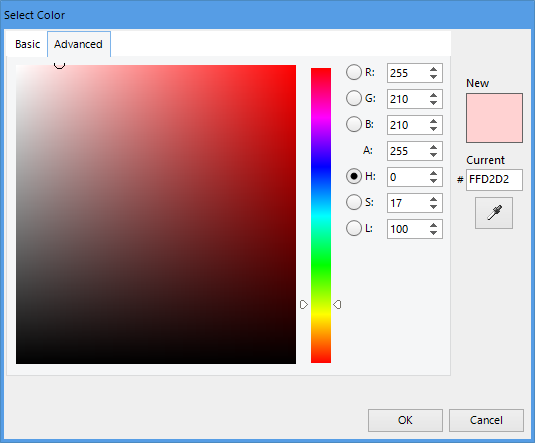
Advanced Colour Selection
Move the slider up or down to select the basic colour hue. Then set luminosity (horizontal movement) and saturation (vertical movement) in the colour square and click on the desired colour. Change the alpha value to change transparency (0 = fully transparent, 255 is fully opaque). The corresponding hexadecimal RGBA colour code is displayed in the field labelled #, where you can also enter a hexadecimal RGBA colour code directly. As with the basic window the colour picker is also available.