Getting more help
If you run into a problem with your logger, you can click Request help... from the Help Menu to contact the support team at LogTag®
LogTag® Analyzer generates some or all of the following files:
-
diagnostics.txt.gz
This file includes information about your operating system version, installed languages, temporary folders, LogTag® Analyzer version numbers and other system related information in a compressed format
-
UserProfile.profile.gz
This file contains the settings for LogTag® Analyzer in a compressed format and can help identify issues with path names and sharing settings
-
AnalyzerErrorLog.dat
This file contains LogTag® Analyzer's error log
-
XXDownloadFilenameXX.ltm
LogTag® Analyzer generates a special download file for any USB logger and any logger or indicator in an interface attached to the PC. These file(s) will have a *.ltm file extension (Logger Total Memory), which can only be viewed with special diagnostic software by LogTag®
While the software is collecting this information, a message is displayed. It is important you do not remove any loggers during this process.
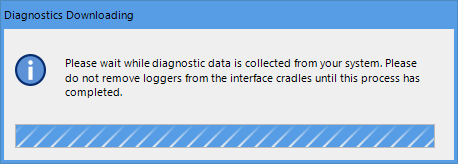
Diagnostic Data collection
LogTag® Analyzer will then open a message window, allowing you to enter of your details.
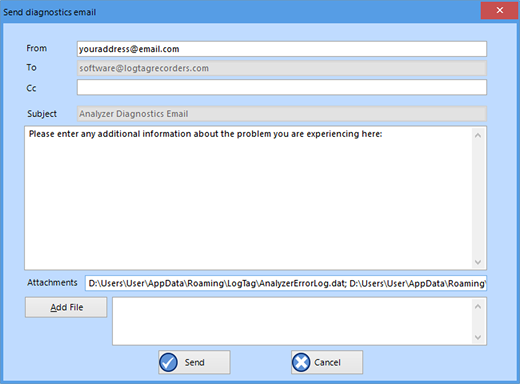
Diagnostics email message
|
Field |
What to enter |
|---|---|
|
From |
Your email address, so we can contact you about the problem |
|
cc |
Email addresses of anyone you wish to share this information with. |
|
Message body |
Include as much detailed information in your email as possible about the problem, such as what you were doing at the time, or what application the LogTag® product is used in. |
|
Add file |
You can add files that help to describe your problem, such as a screenshot or a specific LogTag® file that causes the issue. You can easily generate a screen shot with Windows' own snipping tool and save it to a file before attaching it. |
Once you have entered all details, click Send to submit the message to LogTag®
Note: When you click Request help... from the Help Menu again, any existing files in the Diagnostics folder will automatically be deleted. If you wish to keep a copy of the files and the report LogTag® we suggest you put your own email address into the cc field of the message.