Advanced USB Logger Settings
LogTag® Analyzer allows you to set additional options for USB loggers, which decide...
- which type of files are generated at the end of the trip
- settings for time, temperature units, MKT parameters and
- how the individual elements of the generated PDF file will be displayed.
Note: The appearance of the PDF file can only be defined during configuration of the logger. It is not possible to alter the appearance once the USB logger has completed its trip.
Additional tabs are displayed

File settings
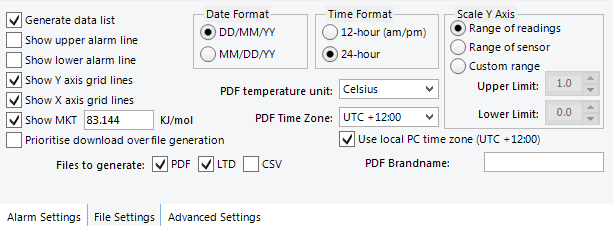
File Settings tab for USB loggers
Generate Data List
The PDF file always contains a one page overview report. Please refer to the individual USB Product guides for information about the contents of the report.
Select this check box to show additional data list pages with a single row for each reading, along with the with date, time and temperature values, plus any special events that were recorded against this reading.
When you clear this box only the report summary page will be created.
Show upper alarm line
Show lower alarm line
Select which alarm line will be displayed on the PDF. Clear the boxs if you don't wish to see the alarm lines.
The chart will not automatically zoom to include the alarm lines, if they lie outside the selected Y-axis scale. If you wish to always see the alarm lines, set a custom range Y-axis zoom which includes the alarm values.
Show Y-axis grid lines
Show X-axis grid lines
Select which grid line will be displayed on the PDF. Clear the boxes if you don't wish to see the grid lines.
The position of the grid lines is automatically determined; it depends on the Y-axis settings and the time span covered by the readings.
Show Mean Kinetic Temperature (MKT)
Selecting this box calculates and displays the MKT value on the PDF report. If selected, you can accept the suggested default value of the Activation Energy of 83.144 KJ/mol, or type a custom ΔH value in the text entry field. This value is then used for the MKT calculations. Typical values range from 60.000 to 100.000 KJ/mol.
When you use LogTag® Analyzer to download a USB logger, the custom value can also be used for the MKT calculations in the software. This is controlled by a setting in the customisation for the Mean Kinetic Temperature (on page 1)
Prioritise Download over File Generation
When enabled, the logger attempts communication with LogTag® Analyzer before generating on-board files.
Files to generate
Select either check box if you want the USB logger to automatically create the corresponding file type every time it is plugged into a USB port. The files are then accessible on a read-only drive or mounted device via your file system.
The files created by the USB logger are not automatically copied to a permanent storage volume on your computer. If you wish to retain the files you need to manually copy them to a location such as your Documents folder.
If you clear all check boxes, no files will be generated and you will need to access the data with LogTag® Analyzer.
Date format
Select one of the options that corresponds to the date format you wish to use for the PDF report. You can choose between DD/MM/YY and MM/DD/YY formats.
Time format
Select one of the options that corresponds to the time format you wish to use for the PDF report. You can choose between 24 hour and 12 hour (am/pm) formats.
PDF Temperature units
Select the temperature units used on the PDF report and in the CSV file from the drop down list. For UTRID-16 loggers this also determines the unit shown on display. It is not possible to configure different units for PDF and Display.
PDF Time Zone
You can clear the Use local PC Time Zone box and choose a different time zone. This is useful if you ship to receivers in a different time zone and you wish them to see the times in their local time.
If you choose your own time zone settings you will need to adjust the time zone for daylight saving yourself. For example, if you want the PDF data to show the correct time for a user in New York, set the time zone to UTC - 5 during Standard Time and to UTC - 4 during Daylight Saving.
Note: The time zone displayed in the PDF cannot be adjusted by the receiver! To view the logger's data in other time zones the receiver will need to download it with LogTag® Analyzer and adjust the displayed time zone.
Use local PC Time Zone
When selected, the PDF file will display times and dates in your local PC's time zone. The time is automatically adjusted for daylight saving.
Y-axis scaling
Select one of the options that corresponds to the scaling you wish to use for the chart with the recorded readings.
-
Range of readings; this scales the chart so the maximum and minimum temperature displayed is just above/below the highest/lowest recorded temperature reading. If you choose this option the maximum screen area is used to display all recorded readings.
-
Range of sensor:; this scales the chart to show the full temperature measurement range of the logger.
-
Custom range: When you select this option, the entry fields for the two temperature values become active. Enter the values you wish to use as maximum and minimum values for the chart's y-axis.
If readings outside your selected custom range are recorded during the trip, the scaling is adjusted so the chart always displays all recorded readings.