Configuring a LogTag® for recording
Some of the LogTag® products are delivered to you ready to start, but most of the time a logger will need to be configured before it can record temperature or humidity data. During the configuration process of a logger you define the settings that affect how the LogTag® records data during its next trip, such as:
-
how and when to start recording, how many readings to record and at which interval
-
whether to stop recording after a defined number of readings or to record continuously
-
what alerts to process and at which temperature limits
-
if password protection is required for configuring or downloading
- What information to show on the logger's display

Locating loggers and loading initial parameters
LogTagMenu Configure
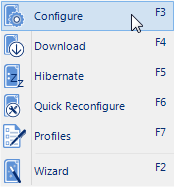
To start the configuration process, insert the logger to be configured into the interface (or a USB socket if you have a USB logger) and click Configure from the LogTag menu or press F3.
Note: By default the Auto Download feature is enabled, which means LogTag® Analyzer will download any previously recorded readings. Please see Enable automatic download of readings from LogTag® for an overview of this feature.
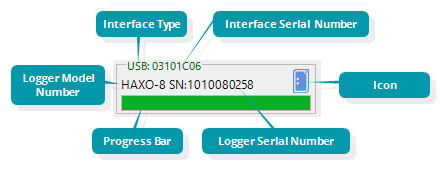
The LogTag Configure window will be shown, and LogTag® Analyzer will check all connected interface cradles and USB ports for attached loggers. Every LogTag® found will be listed in the Progress Pane on the left side, showing the progress of retrieving its configuration settings.
When all loggers have been found, the configuration settings currently stored in the logger in the first interface found are shown in the Parameter Pane on the right. These are either the factory pre-set data, or the parameters used when this logger was last configured. Model number and serial number of this logger are shown in the Parameter Pane.
Note: You can attach different logger models at the same time, you can, however, only loggers of the same model will be eligible to be configured at the same time.
In the example shown the first detected logger was a HAXO-8 in the RS232 serial interface. Therefore the configuration parameters for this HAXO-8 are shown.
If you wish to configure any of the other loggers found, you can click on that logger's progress bar, and the parameter pane will now show the corresponding configuration data for that logger.

You can now adjust the configuration parameters for the next trip.
Command Buttons
When you have entered or adjusted the settings as desired, click to upload these new configuration data to the LogTag®. In addition to the button following other actions are available in this screen:
-
Scans all connected interfaces and USB ports again. Click this button if you have inserted additional USB loggers you wish to configure, or not all connected USB loggers appear in the Progress Pane.
-
You can save the parameters as entered to a Configuration Profile. Please see Configuration Profiles
-
You can abort the configuration process by clicking this button.
-
Clicking this button brings up a browser window, showing help for this topic.
-
This button is available only after one or more loggers have been configured. Clicking this button will scan all interfaces and USB ports for loggers again, and upload the entered configuration data to each eligible logger.
-
Clicking this starts the configuration process from the beginning.
Progress Pane
Each logger found will be listed in the Progress pane.

|
When you see this icon displayed in the progress bar, the parameters entered for configuration will be applied to this logger when clicking |

|
When you see this icon, the logger will not be configured when you click , since the model is different from the one for which you have entered configuration parameters. |

|
A logger showing this icon cannot be configured, as there are no trips remaining. This applies to single use loggers or loggers that have a locked configuration. You will see this on SRIC-4, SRIL-8, USRIC-4 and USRIC-8 loggers when you attempt to configure them for a second trip. |

|
This logger has a low battery. Some models cannot be configured when they have a low battery. |

|
This icon is displayed after the logger has been successfully configured. This logger can now be started, or will start automatically, depending on the chosen start options. The progress bar will also show the word Configured |

|
This icon is displayed after an unsuccessful attempt to configure the logger. Further error messages will be displayed to indicate why the logger was not configured. |
|
|
This icon is displayed after the logger has been successfully configured, but the logger has some advanced features that the software could not set. This typically happens if you try to configure older and newer loggers together. When you hover the mouse over this icon you can see which features were not set. |

While the software is sending the new configuration data to each LogTag®, progress bars in the Progress Pane will identify the loggers that are being configured.
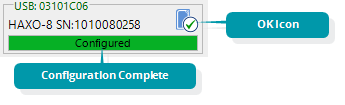
Once finished the progress bar shows Configured.
If you use to configure a different LogTag®, you may update its configuration without having first saved previously recorded data.
As soon as a logger is configured, previous data can no longer be downloaded. Please ensure you have downloaded the readings before configuring to avoid data loss.
If additional loggers of the same model have been located, these loggers will also be configured with the new data.
If you select Retain Description/Password, existing descriptions and passwords for each logger will be retained, instead of using the details from the configuration parameters entered. Note that you will still need to provide a password for loggers that have an active configuration password protection.
The next sections describe each configurable option; please note, however, that not every option is present for each of the LogTag® models.
To configure loggers you can also use pre-configured profiles, or quickly re-configure a LogTag® with the same settings as used for the previous recording. For more details on these options please Configuration Profiles and Quickly re-configuring a LogTag®