Chart Display
Clicking on the Chart tab presents the information in the file window as a 2-D line chart with markers.
You can see how temperature (and humidity if applicable) changed during the trip.
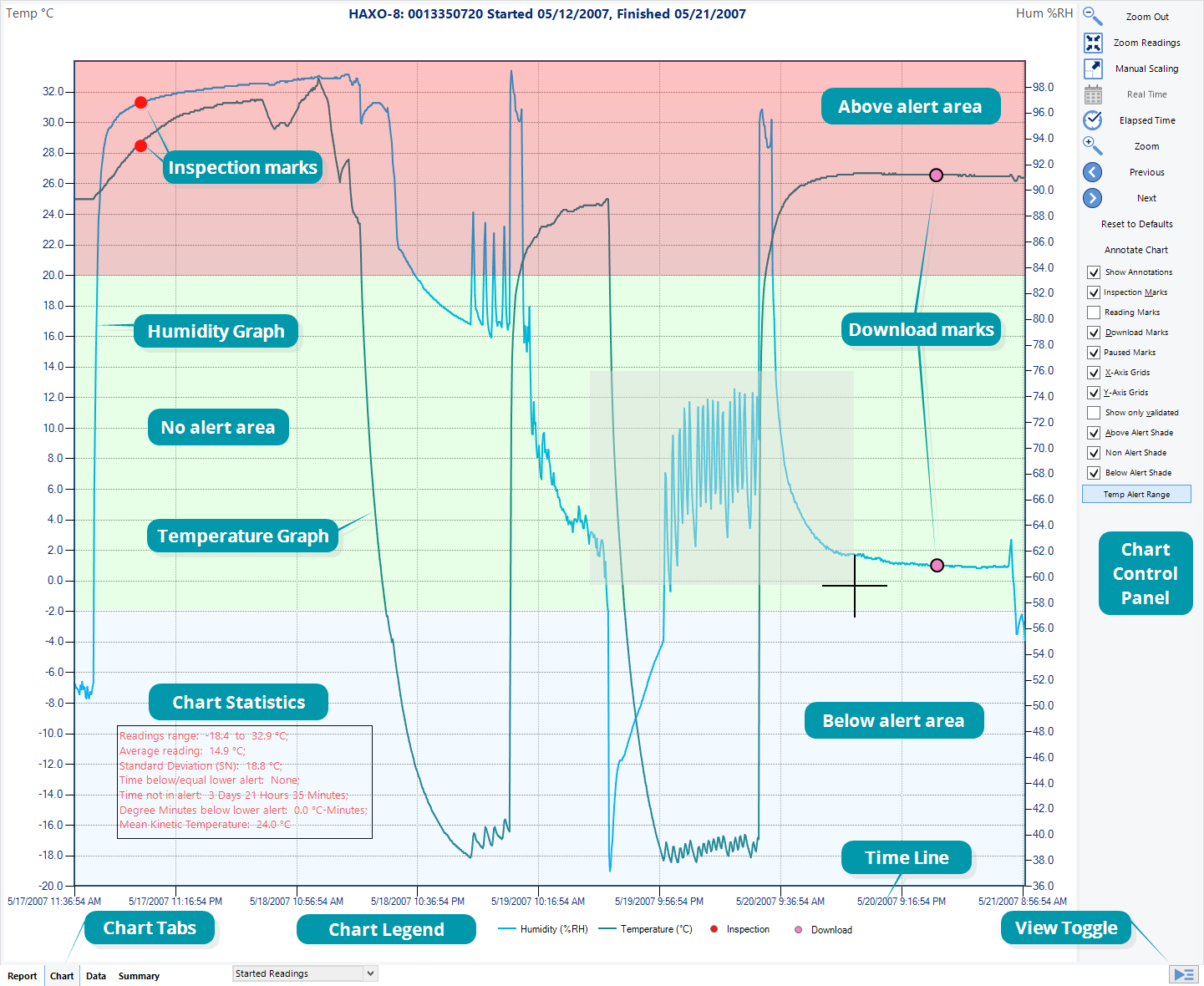
Chart display
If you want to see parts of the graph in more detail, you can zoom in and display a smaller section of the data. Move the cursor to the upper left corner of the area you wish to magnify, hold down the left mouse button and move the cursor so it covers the area you wish to see.
When you release the left mouse button, the area highlighted now fills the window. Depending on the zoom level not every data point may have a marker displayed. LogTag® Analyzer intelligently adjusts the display of markers so the graph line is still visible. These markers can also be turned off, and their appearance can be altered. You can learn more about this in the Charts Section. You can also see a number of other marks.
|
|
Inspection marks are recorded in the LogTag®'s memory each time its button is pressed. |
|
|
Download marks are recorded in the LogTag®'s memory each time it is downloaded to a PC. |
|
|
A Paused mark will be shown when the product records readings for which the statistics functions are suppressed. |
|
|
A Min/Max reset mark will be displayed for each time the min/max display on a logger is reset. |


When the mouse pointer is moved over the chart, a tooltip is displayed near the mouse pointer (as shown in the example). It displays the reading closest to the mouse pointer position. If the readings are very close together, you may want to zoom in further and then inspect individual readings with the help of tooltips.
When elapsed time is chosen for the x-axis display, the tooltip will also show the elapsed time.
You can also add annotations (Chart annotations) to the chart.
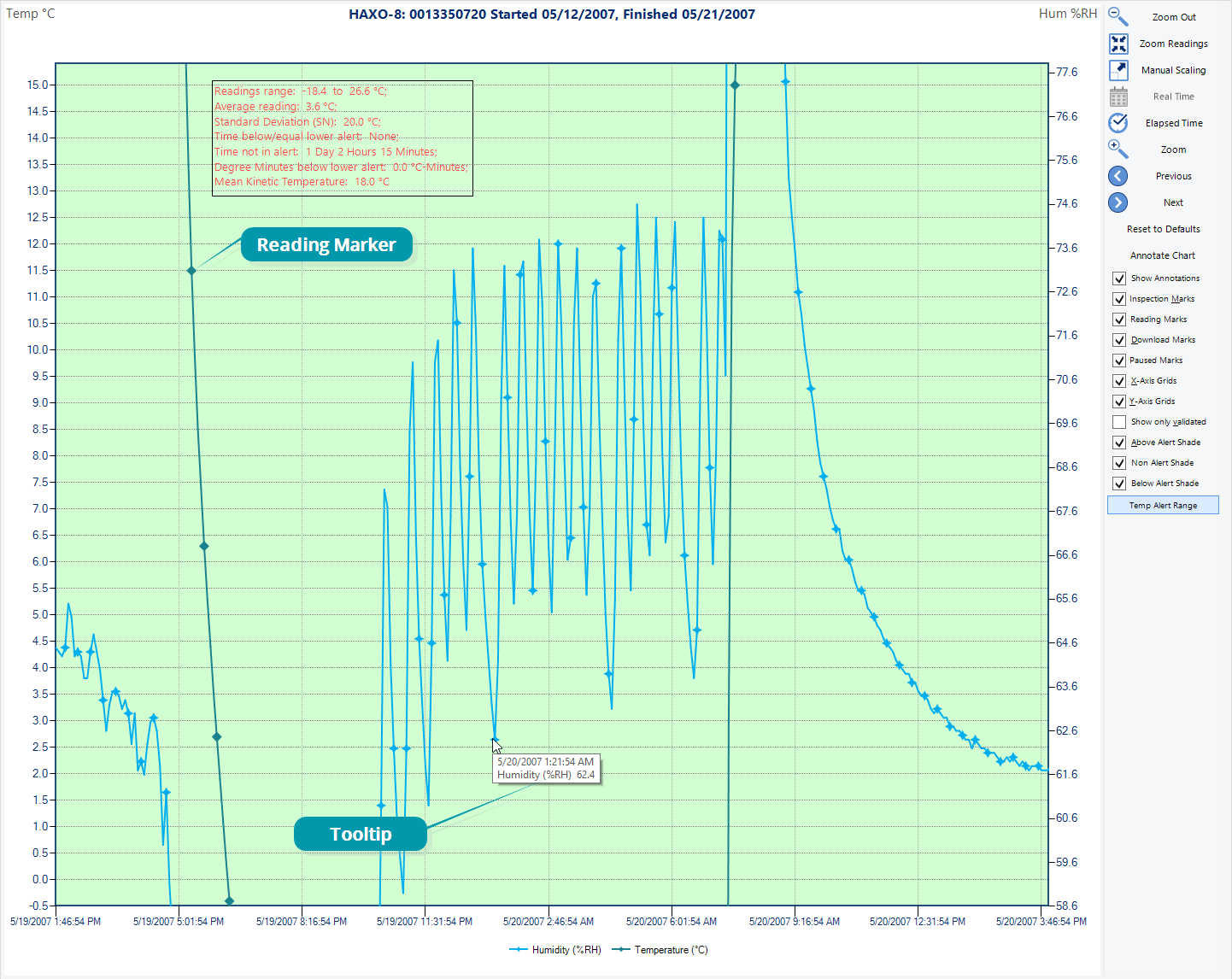
Chart display while zooming with the mouse