Stopping the UTRED30-WiFi
Automatically
The UTRED30-WiFi automatically stops recording temperature when the maximum number of readings specified during configuration has been reached. Your unit can also be set up to stop automatically when it is downloaded. This option needs to be set up at the factory and cannot be changed during configuration with LogTag® Analyzer. Your distributor can supply more information about this option.
Manually
You can configure a UTRED30-WiFi so it can be stopped with the button. This feature is useful when you take the logger out of a shipment and don’t want to falsify the statistics with readings taken after the shipment completion. The stop function is enabled in the Advanced Settings tab during configuration. When enabled, following will stop the unit:
|
Press and hold the button. STOPPED is shown in addition to the |
|
|
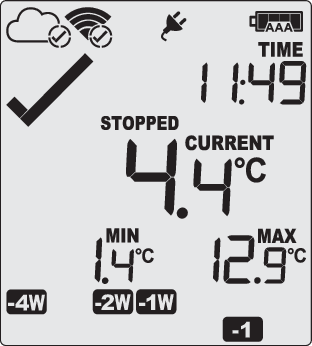
Keep holding the button until the The logger will now stop taking readings. |
|
|
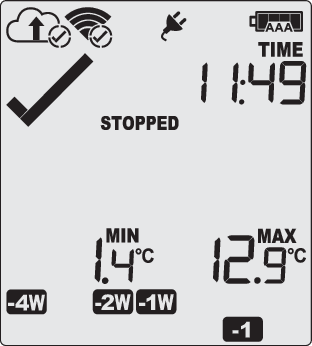
The last recorded temperature is now no longer shown, but minimum and maximum trip values remain. The logger will not stop if you…
The UTRED30-WiFi will now connect to LogTag® Online to upload any outstanding temperature readings. |
|
 symbol.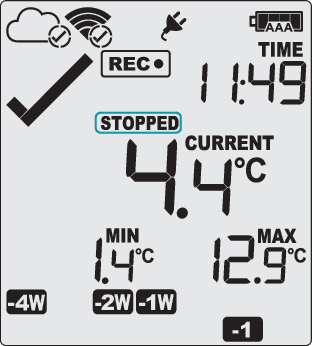
 ) and the Clear alarm by pressing STOP button function is enabled, you will need to clear the alarm first before you can stop the logger. Please see Clearing an Alarm for more information.