How users log on
If LogTag® Analyzer is connected to the User Server, the logon screen as shown  in the toolbar or click Logon from the User Server menu. For users to successfully log on to the software for the first time, they must enter the username and password assigned to them by the User Server administrator. The password can be changed after the user has logged on (See How users change their password) but not the Username.

Logon request when connected to User Server
Usernames are typically not case sensitive, however passwords are, which means that "Bob Smith" is the same username as "BOB SMITH" and "bob smith", however, entering a password of "bob" rather than "Bob", for example, is considered to be different.
Once logged on, you will be able to use all functions to which the User Server administrator has given you access.
If your logon failed, you will see the Logon Failed message.
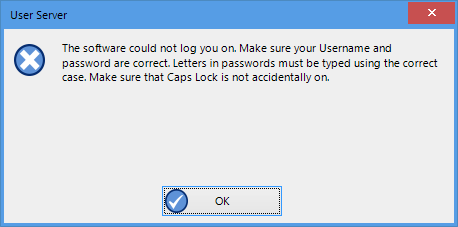
Unable to log on to User Server software
Every log on attempt, whether successful or not, will be recorded automatically in the audit logs. As a security measure, the network administrator may configure LogTag® User Server so that a user account becomes blocked after a certain number of consecutive failed log on attempts. Please contact your network administrator if you have problems with the log-on process.
To log off, click the Logoff icon on the toolbar  , or click Logoff from the User Server menu. When you exit LogTag® Analyzer you will automatically be logged off.